
Posts

Amazing improvements in Office 365

Amazing improvements in Office 365

If you’re an Office 365 subscriber, you’re in for some souped-up enhancements. Most involve artificial intelligence (AI) making sense of your data for you, so you spend less time and effort manually processing it. Here are a few of the latest enhancements that’ll give you more time for value-added tasks (and for coffee breaks and power naps, too).

Office

Write and draw with digital ink

Typing is easy on desktops and laptops, but when you’re on touch-enabled devices, keyboards are cumbersome to use, whether they are extra hardware or as space invaders on your screen. Now, the Draw tab is available on your favorite Office programs so you can use your finger, a stylus, or a mouse to doodle and write. You can automatically convert your handwriting to text in Word or OneNote by implementing the handwriting input function of your Windows 10 touch keyboard.

Chat with colleagues right inside the app

Now available exclusively to Office 365 subscribers, the chat function lets team members message one another within a Word document, PowerPoint presentation, or Excel spreadsheet as they work on it together.

Word

Write with your voice

Ever wished you had a personal secretary who could type dictation for you? As an Office 365 subscriber, you won’t need one. Sign into your account, turn on your microphone, then go to Home > Dictate (in Outlook, go to Message > Dictate instead). Once the Dictate icon turns red, you can start writing your document just by speaking. It’s that easy! Now available in Word for Office 365, Outlook for Office 365, PowerPoint for Office 365, and OneNote for Windows 10.

Edit documents with natural gestures

With your handwriting and voice digitized into standard text, editing your document is easy, thanks to natural gestures. It’s like using a pen to insert or cross out words on printouts, but immediately seeing your edits afterward! Other magical things you can do include inserting spaces and paragraph breaks, stringing broken-up words together, and circling text to select it. Now available in Word for Office 365 and Word Mobile.

PowerPoint

Transform your scribbles

Sometimes you need to draw or write by hand to get stuff down quickly. Using digital ink can be the quickest way to communicate, but turning scribbles into editable text or easy-to-manipulate shapes for a slideshow presentation later on is time-consuming.

Or rather, that was the case, because now Ink to Text and Ink to Shape can convert your handwriting and hand drawings into standard text or shapes, respectively. Now available for PowerPoint for Office 365, PowerPoint for iPad, and PowerPoint for iPhone. Ink to Shape is also available exclusively to Office 365 subscribers on Excel for Office 365, Word for Office 365, Excel 2016, Word 2016, and Visio Online Plan 2.

Excel

“Ideas” literally let you work smarter

Pie charts, bar graphs, scatter diagrams — with so many ways to visualize data, it can become troublesome to implement the right graph. Thankfully, the upcoming Ideas will let AI come up with the most apt graphs for you. Just click on a cell in a data table, click the Ideas button on the Home tab, then voila! Excel comes up with charts for you to choose from. It can even set trend lines, recognize outliers, and create summaries for you — all without having to write an unwieldy formula! Coming soon to Excel for Office 365, Excel for Office 365 for Mac, and Excel Online.

A picture is worth a thousand data points

Since optical character recognition software is already a couple of decades old, it’s about time we’re able to extract data tables from pictures. Soon, the Insert data from picture function will let us encode ingredients lists from recipes and digitize printed receipts by taking their photos. Coming soon to Excel for Android tablets and Excel for Android phones.

One formula, many values

For so long, Excel users had to enter a formula and copy it to get multiple values (known as an array) from their data tables. With dynamic arrays, however, all you have to do is write a formula once, press Enter, and you’ll instantly get values for entire columns or tables instantly, which means faster processing with fewer errors. To illustrate, you can use a dynamic array to fill up entire multiplication tables, and when you change or add more factors, the array will recalculate and resize automatically. Coming soon to Excel for Office 365 and Excel for Office 365 for Mac.

Outlook

Quickly create tasks

Outlook now lets you create tasks and to-do lists the way you write emails. Just click Tasks > New Tasks, type the name of the task in the Subject box, and add task details in the body. You can also set its priority, start and due dates, and even a reminder for it.

Additionally, you can create tasks out of emails by dragging an email to Tasks on the navigation bar. This is way faster than copy-pasting email contents onto the body of a task, though keep in mind that email attachments aren’t carried over to the newly made task.

Make the most out of Office 365! If you’re already a subscriber or are currently looking into it, let us help you configure and implement it for maximum productivity.

Published with permission from TechAdvisory.org. Source.

The post Amazing improvements in Office 365 appeared first on Parallel Edge, Inc.


Source: Pronto

Think your password is secure? Think again

Think your password is secure? Think again

A password policy designed for federal agencies must be secure, right? Surprisingly, that hasn’t been the case, according to the National Institute of Standards and Technology (NIST). The NIST created many of the password best practices you probably loathe — the combination of letters, numbers, and special characters — but it now says those guidelines were misguided and has changed its stance on the matter. Find out why and how it involves you.

The problem

The issue isn’t necessarily that the NIST advised people to create passwords that are easy to crack, but it steered people into creating lazy passwords, using capitalization, special characters, and numbers that are easy to predict, like “P@ssW0rd1.”

This may seem secure, but in reality, these strings of characters and numbers could easily be compromised by hackers using common algorithms.

To make matters worse, NIST also recommended that people change their passwords regularly, but did not define what it actually means to “change” them. Since people thought their passwords were already secure with special characters, most only added one number or symbol.

NIST essentially forced everyone to use passwords that are hard for humans to remember but easy for computers to guess.

Recently, the institution admitted that this scheme can cause more problems than solutions. It has reversed its stance on organizational password management requirements, and is now recommending banishing forced periodic password changes and getting rid of complexity requirements.

The solution

Security consultant Frank Abagnale and Chief hacking officer for KnowBe4 Kevin Mitnick both see a future without passwords. Both security experts advise enterprises to utilize multifactor authentication (MFA) in login policies.

This requires users to present two valid credentials to gain access to their data. For instance, a code texted to an employee’s smartphone can serve as an added security measure to thwart hackers.

Moreover, Mitnick recommended implementing long passphrases of 25 characters or more, such as “correcthorsebatterystaple” or “iknewweretroublewhenwalkedin5623”. These are much more difficult to guess and less prone to hacking. As for the frequency of changing passphrases, it will depend on a company’s risk tolerance.

Simply put, passwords should be longer and include nonsensical phrases and English words that make it almost impossible for an automated system to make sense of.

Even better, you should enforce the following security solutions within your company:

  • Single sign-on – allows users to securely access multiple accounts with one set of credentials
  • Account monitoring tools – recognizes suspicious activity and locks out hackers

When it comes to security, ignorance is the biggest threat. If you’d like to learn about what else you can do, just give us a call.

Published with permission from TechAdvisory.org. Source.

The post Think your password is secure? Think again appeared first on Parallel Edge, Inc.


Source: Pronto

Are your mobile devices protected?

Are your mobile devices protected?

Businesses have embraced mobile technology, as it allows for constant collaboration, which increases productivity. But as the number of mobile devices used in daily operations grows, so do the incidents of cybercrimes targeting smartphones and tablets. Protect your company mobile devices by following these steps.

Ensure mobile OS is up-to-date

The updates on Apple and Android operating systems (OSs) improve overall user experience, but their most important function is to fix security vulnerabilities. Reduce your business’s exposure to threats by installing updates for all devices as soon as they become available. Don’t wait for a few weeks or months to update, as this give hackers ample time to exploit vulnerabilities on devices that run on an outdated OS.

Install business applications only

Downloading apps seems harmless. But lenient policies on what should and shouldn’t be downloaded on company mobile devices could lead to staff downloading and installing non-business-related apps from third-party stores, most of which are notorious for malicious advertising codes and other threats.

Be careful when connecting to public Wi-Fi networks

Emergency situations may compel you to use password-free Wi-Fi networks in hotels, airports, cafes, and other public places. Connecting to an open network can expose your confidential information and sensitive company data to hackers connected to the same network.

You can avoid this by providing a practical internet data plan, preferably one that includes roaming services, for remote workers. And if you really have to connect to an open Wi-Fi, don’t use the connection for transferring sensitive data.

Enable phone tracking tools

It’s sad but inevitable — losing a company-issued mobile device happens. Devices can be misplaced or stolen, and enabling Find My iPhone for iOS devices, GPS Phone Tracker for Android, or any device-tracking app helps users locate lost phones. Some also have the option to delete data in stolen devices. Downloading and setting up such an app only takes a few minutes, and it will give you peace of mind knowing that even if your phone is lost or stolen, its contents will not be compromised.

Screen SMS carefully

SMS phishing can be used to trick you into clicking malicious links. Hackers send messages purporting to be from someone you know, asking you to urgently send confidential data. Should you encounter such an SMS, you can either delete it or alert your IT department. You can also block unknown senders without even opening their message.

Mobile devices are becoming more critical to operations. And with more devices open to attack, businesses must bolster their cybersecurity efforts. Hackers will exploit every possible vulnerability, and that includes those in unsecured smartphones and tablets. Get in touch with us if you need comprehensive security solutions for your business.

Published with permission from TechAdvisory.org. Source.

The post Are your mobile devices protected? appeared first on Parallel Edge, Inc.


Source: Pronto

Why SaaS is right for your business

Why SaaS is right for your business

Almost every business relies on software to operate, but most SMBs find lifetime licenses painfully expensive. What can you do to harness the power of software without breaking the bank? One good alternative is software as a service or SaaS. Read on to learn more.

What is SaaS and what makes it appealing?
SaaS is a software delivery model that allows the user to access software from any device via the internet. This gives you more flexibility since you don’t have to come to the office to use the software. You can work from anywhere as long as you can go online.

As opposed to a traditional on-premises setup where software is stored locally, SaaS is hosted in the cloud. By transferring software hosting to a third party, you’re outsourcing all the responsibilities that come with maintenance, such as upgrades and troubleshooting. In a way, getting SaaS is like renting a car: Somebody else owns the vehicle, but you get to drive it.

Shifting software ownership away from your business also changes how much you pay for it. With on-premises software, you purchase a license and pay yearly support fees, which can amount to 22 percent of the price of license fees (ouch!). With SaaS, you pay a monthly or annual subscription fee that covers licenses, support, and other fees. This is better since it allows you to spread out costs on a monthly basis, instead of purchasing expensive licenses outright and ending up with a huge maintenance bill every year.

Will my data be safe?
One of the issues that make companies reluctant to switch to SaaS is data security. Who will own my data? Will my data be safe? What if the vendor goes out of business?

For your peace of mind and safety, when you’re outsourcing your software to a SaaS vendor, you have to sign a service level agreement (SLA). This should specify that you own the data and that the vendor is obliged to provide access to your data even if it goes bankrupt.

Data hosted by your SaaS vendor will be more secure than when it’s stored on your average SMB’s network. That’s because SaaS vendors have to undergo strict security audits, forcing them to invest more in security, backup technology, and maintenance than a typical SMB.

Should I switch to SaaS or stick to on-premises?
SaaS is an ideal solution for small and medium-sized businesses that are looking for a way to reduce upfront costs. But if your business is large or has complex processes, a traditional on-premises solution might be better since it offers more functionality and allows for full customization.

Still unsure about whether SaaS is the right answer for your organization? Want to know more about SaaS before making the transition? Call us today! Our experts are ready to answer any questions you may have about SaaS.

Published with permission from TechAdvisory.org. Source.

The post Why SaaS is right for your business appeared first on Parallel Edge, Inc.


Source: Pronto

The true cost of an ugly website

The true cost of an ugly website

We are taught never to judge a book by its cover. But in this superficial age, looks are everything, especially for websites. Your website is a customer’s first impression of your business, and if it doesn’t wow them, you’re losing money. Follow these best practices so you don’t end up in that situation.

A variety of professional photos

From pictures of your products to team photos, high-quality images are arguably the most important thing on your website. Blurry, outdated, or irrelevant pictures tell your site visitors that you don’t care about their browsing experience. In-house photos are the best option, but stock images shouldn’t cause any problems as long as they are optimized for mobile viewing and relevant to your content.

Navigation

Aside from one subpar imagery, linking to nonexistent pages is one of the best ways to turn site visitors away. Make sure it’s easy to navigate your site and remove outdated or irrelevant pages. You can’t sell 404 pages to customers, and if that’s all visitors can find, it’s game over.

Clear copywriting

The last thing you want to do is to confuse your customers, so it’s important to keep all of your product or service descriptions as straightforward and simple as possible. If what you’re selling has detailed information, such as dimensions or technical requirements, make sure it’s easy to find but not obtrusive.

Promises to site visitors

Any website that ships products should make its returns policy as visible as possible. This establishes trust early and some online shoppers make purchase decisions based solely on the clarity of a return policy.

If you don’t run an eCommerce site, you also need to prominently display privacy commitments, such as those mandated by the European Union’s General Data Protection Regulation (GDPR).

About page

Your brand needs a story behind it that customers can relate to. Every company website should have an About Us page that describes your team, its culture, and what sets you apart from the competition. Whatever your story is, make sure it’s accessible from any page on your site.

Design

Not everyone is a web design expert, but in today’s gig economy one is never too far away. If your budget is tight, there are DIY site builders specifically geared toward small businesses. Or with a relatively low monthly expenditure, you can hire a managed website provider.

With more revenue originating online, small- and medium-sized business owners can’t afford to overlook the importance of creating a fully functional website. For more information on building a modern website, call us today!

Published with permission from TechAdvisory.org. Source.

The post The true cost of an ugly website appeared first on Parallel Edge, Inc.


Source: Pronto

Get the most out of Office 365 with these tricks

Get the most out of Office 365 with these tricks

Does your organization need to optimize its migration and provision of Office 365? Here are 6 strategies for managing and making the most out of your subscription to Microsoft’s premium cloud-based productivity suite.

Declutter your inbox

If you’re having trouble managing the overwhelming amount of emails in your inbox, then using Office 365’s “Clutter” feature can clear up some space. To enable this feature, go to Settings > Options > Mail > Automatic processing > Clutter then select Separate items identified as Clutter. Once activated, mark any unwanted messages as “clutter.” After learning your email preferences, Office 365 will automatically move low-priority messages into your “Clutter” folder, helping you focus on more important emails.

Ignore group emails

Want to keep messages from an email thread you don’t want to be part of out of your inbox? If so, simply go to the message and find the Ignore setting. Doing this will automatically move future reply-alls to the trash so they never bother you again. Of course, if you ever change your mind, you could un-ignore the message; just find the email in your trash folder and click Stop ignoring.

Unsend emails

In case you sent a message to the wrong recipient or attached the wrong file, use Office 365’s  message recall function. Simply open your sent message, click Actions, and select Recall this message. From here, you can either “Delete unread copies of this message” or “Delete unread copies and replace with a new message.” Bear in mind that this applies only to unread messages and for Outlook users within the same company domain.

Work offline

Whenever you’re working outside the office or in an area with unstable internet, it’s a good idea to enable Offline Access. Found under the Settings menu, this feature allows you to continue working on documents offline and syncs any changes made when you have an internet connection. Offline access is also available in your SharePoint Online document libraries.

Use Outlook plugins

Aside from sending and receiving emails, Outlook also has some awesome third-party plugins. Some of our favorite integrations include PayPal, which allows you to send money securely via email; and Uber, which lets you set up an Uber ride reminder for any calendar event. Find more productivity-boosting plugins in the Office Store.

Tell Office applications what to do

If you’re not a fan of sifting through menus and options, you can always take advantage of the Tell Me function in your Office apps. When you press Alt + Q, you bring up a search bar that allows you to look for the functions you need. Suppose you need to put a wall of text into columns on Word but can’t find where it is specifically, just type “column” in the search bar and Microsoft will help you with the rest.

These tricks and features will definitely increase productivity. And fortunately, there’s more coming. Microsoft is continuously  expanding Office 365’s capabilities, and if you truly want to make the most out of the software, don’t be afraid to explore its newly released features.

For more Office 365 tips and updates, get in touch with us today.

Published with permission from TechAdvisory.org. Source.

The post Get the most out of Office 365 with these tricks appeared first on Parallel Edge, Inc.


Source: Pronto
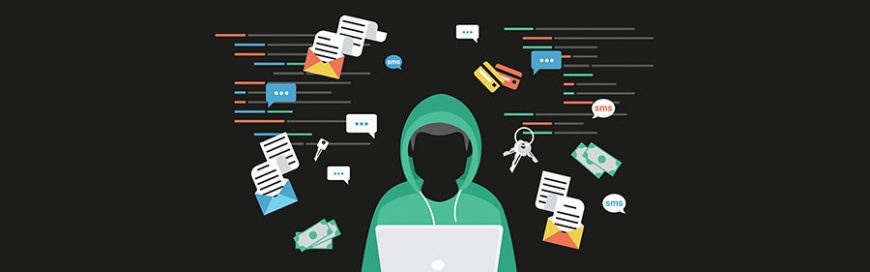
Not all hackers are cybercriminals

Not all hackers are cybercriminals

Newspaper headlines and Hollywood movies have shaped our understanding of computer hackers, but in the real world it’s not so simple. Some hackers are making massive contributions to the field of cybersecurity, it just depends on which hat they’re wearing that day. Take a few minutes to learn about white, black, and gray hat hackers.

A complicated history
In the 1950s, the term ‘hacker’ was vaguely defined. As computers and the people who worked with them became more accessible, the word was used to describe someone who explored the details and limits of technology by testing them from a variety of angles.

But by the 1980s, hackers became associated with teenagers who were being caught breaking into government computer systems — partially because that is what they called themselves, and partially because the word hacker has an inherently aggressive ring to it.

Today, several of those pioneering hackers run multimillion-dollar cybersecurity consulting businesses. So what should you call someone who uses their knowledge for good?

“White hat” hackers
Sometimes referred to as ethical hackers, or plain old network security specialists, these are the good guys. Whether it’s selling what they find to hardware and software vendors in “bug bounty” programs or working as full-time technicians, white hat hackers are just interested in making an honest buck.

Linus Torvalds is a great example of a white hat hacker. After years of experimenting with the operating system on his computer, he finally released Linux, a secure open-source operating system.

“Black hat” hackers
Closer to the definition that most people outside the IT world know and use, black hat hackers create programs and campaigns solely for causing damage. This may be anything from stealing information using malware to forcefully shutting down networks using denial-of-service attacks.

Kevin Mitnick was the most infamous black hat hacker in the world. During the 1990s, Mitnick went on a two and half year hacking spree where he committed wire fraud and stole millions of dollars of data from telecom companies and the National Defense warning system.

“Gray hat” hackers
Whether someone is a security specialist or a cybercriminal, the majority of their work is usually conducted over the internet. This anonymity affords them opportunities to try their hand at both white hat and black hat hacking.

For example, Marcus Hutchins is a known gray hat hacker. He’s most famous for testing the WannaCry ransomware until he found a way to stop it.

During the day, Hutchins works for the Kryptos Logic cybersecurity firm, but the US government believes he spent his free time creating the Kronos banking malware. He has been arrested and branded a “gray hat” hacker.

The world of cybersecurity is far more complicated than the stylized hacking in Hollywood movies. Internet-based warfare is not as simple as good guys vs. bad guys, and it certainly doesn’t give small businesses a pass. If you need a team of experienced professionals to help you tackle the complexities of modern cybersecurity, call us today.

Published with permission from TechAdvisory.org. Source.

The post Not all hackers are cybercriminals appeared first on Parallel Edge, Inc.


Source: Pronto

Security tips for your IoT devices

Security tips for your IoT devices

Major companies like Google, Apple, and Microsoft are investing a lot of money in the Internet of Things (IoT). But just like any other technological trend, it comes with minor bugs and setbacks. Because of the diversity in IoT, developers have yet to develop large-scale security solutions. In the meantime, here are some things you can do to keep IoT cyberattacks at bay.

Set passwords

Not many people know they can set passwords for IoT devices, making their gadgets easy to hack. You have to make sure to set new and strong passwords — preferably with a combination of upper- and lowercase letters, numbers, and symbols. Then, use a password manager to keep track of all your passwords.

Disable Universal Plug and Play (UPnP)

UPnP helps IoT gadgets discover and connect to other network devices. But this feature also serves as a gateway for hackers to infiltrate your devices and network. To prevent this, disable this feature.

Create a separate network

It’s a good idea to keep your IoT devices connected to their own network that’s separate from your main office network. This way, gadgets can connect to the internet but won’t have access to mission-critical files.

You can also invest in device access management tools. These allow you to control which devices can access what data, and prevent unauthorized access.

Update your firmware

You need to keep your software up to date if you want to secure your devices against cyberattacks. Manufacturers are always releasing new patches for the latest vulnerabilities, so make it a habit to check and install IoT firmware updates regularly.

If you have several devices, use patch management software to automate patch distribution and schedule regular updates.

Unplug it

Simply disconnecting your devices or turning them off when not in use can significantly reduce your vulnerability to cyberattacks. It removes potential entry points into your network and minimizes the chances of unauthorized access to your network.

With the advent of IoT devices in homes and offices, hackers also developed more cunning ways to exploit them. Adopting the abovementioned security habits can prevent a variety of IoT attacks, but if you need to beef up your security, contact us today. We have robust security solutions to keep your hardware and systems safe.

Published with permission from TechAdvisory.org. Source.

The post Security tips for your IoT devices appeared first on Parallel Edge, Inc.


Source: Pronto

Start using these six Gmail tips now

Start using these six Gmail tips now

Twenty-four hours seem to pass by in the blink of an eye, especially if you’re a small business owner. In order to stand a chance against the competition, the last thing you should do is bury yourself in a pile of endless emails. With the following Gmail tips and tricks, you’ll spend less time with your inbox and more time driving business growth.

Undo Send

We’ve all had an email or two we wish we could take back. Gmail has a neat feature that gives you a short period of time to recall a mistakenly sent message. Simply click the Undo link that appears to the right of the “Your message has been sent” notification.

Canned Responses

Dubbed as “email for the truly lazy,” Canned Responses is a new feature that allows you to save time and reuse an email that you designate as a Canned Response. Similar to an email template, it saves copious amounts of time since you won’t have to retype the same responses over and over again. It comes in handy for businesses that send plenty of routine emails. To do this, go to Settings, open the Advanced tab, and enable Canned Responses (Templates).

Send large attachments with Google Drive

With Gmail, users can easily send attachments up to 25 MB. But say you have a huge zip file for a photo shoot that a client wants to review — you’re going to need more space. If you use Google Drive with your Google account, you can send larger files in Gmail.

Copy the large file to your Google Drive, then click Compose in Gmail and type your message. When you’re ready to attach the large file, click the Google Drive icon (next to the emoji icon that looks like a smiling face). Insert the files you want to attach and send your message.

Turn on Priority Inbox

Priority Inbox organizes your messages by their importance using machine learning. You’ll be able to divide your inbox into five sections, where the messages will be displayed in the following order:

  1. Important and unread messages
  2. Starred messages
  3. [Customizable section]
  4. [Customizable section]
  5. Everything else

To enable Priority Inbox, hover your mouse over the Inbox button in the upper left corner of the screen until a dropdown arrow appears. Click on it, and choose Priority Inbox.

Back up your messages

If you ever need to back up or migrate your Gmail messages, Gmvault can help. It’s an open source solution that can back up your entire Gmail directory or just a handful of messages. The email data is then available whenever you need to restore or recreate your Gmail folders. You can also use it to migrate messages from one account to another.

Enable advanced settings

Configuring Gmail’s Advanced Settings is an excellent way to increase email efficiency. Some of these features include Multiple Inboxes, Preview Pane, and custom keyboard shortcuts. Access them by going to Settings and clicking on the Advanced tab.

Spending the right amount of time with emails while managing other crucial business areas is a balancing act many business owners find difficult. If you have questions or need further assistance regarding Gmail or IT in general, feel free to contact us.

Published with permission from TechAdvisory.org. Source.

The post Start using these six Gmail tips now appeared first on Parallel Edge, Inc.


Source: Pronto

Reasons to back up your mobile devices

Reasons to back up your mobile devices

Companies such as Apple, Samsung, and others have turned mobile phones into mini-computers that can serve as a substitute for your laptop, or as a storage device. If you’re using a smartphone as a communications and storage device, backing up now would be a wise move.

Malware on mobile

More than two-thirds of the world’s population use a mobile phone with internet connection, so dangers in these handy devices are to be expected. Scarier than the thought of being offline is being online and exposed to malware.

If you use your mobile devices as extensions of your work computers, backing them up is a must. Mobile phones have become as vulnerable to malware as laptops and desktops are, especially if you consider the fact that many professionals and business owners use them for emailing confidential documents and storing business-critical files.

Device disasters

Malware isn’t the only disaster that can hurt your smartphone. Because you carry it wherever you go, your device can easily be stolen, misplaced, or damaged. They may be easily replaceable, but the data they contain is not. Here are some security threats to look out for:

  • Data leakage
    Something as simple as transferring files onto a public cloud storage service, or pasting confidential information in the wrong place could compromise your business. In fact, according to specialist insurance provider Beazley, “unintended disclosure” accounted for 41% of data breaches reported by healthcare organizations during the first three quarters of 2017.
  • Social engineering
    Tricking people online into handing over their personal and financial data is no longer confined to desktops, as this trend is already happening on mobile devices. In a report by IBM, it was found out that users are three times more vulnerable to fall for phishing attacks on mobile devices compared to desktops. This is because phones are where people will most likely see a message first, making them a popular attack vector by cybercriminals.
  • Wi-Fi interference
    When we connect our devices to public Wi-Fi networks, we are putting critical information at risk. According to Wandera, nearly a quarter of devices in 2017 connected to potentially insecure networks, and some even encountered a man-in-the-middle attack, where someone anonymously intercepts communication between two parties.
  • Out-of-date devices
    A vast majority of manufacturers, most particularly on the Android front, are ineffective at providing updates for their devices. This can inconvenience end users, as this exposes them to the many threats lurking online. Some smartphones and tablets may receive a security patch from time to time, but manufacturers eventually stop doing so after a while.
  • Physical device breaches
    While this may seem unlikely for some, lost or unattended devices can still become a major security risk, especially if they are not employing proper security measures such as PIN codes and encryption.

Backup options

Performing backups on iOS and Android devices is a quick and painless process. For example, companies that use Office 365 or Google’s G Suite enable company-wide backup settings from a single dashboard. Apple’s backup settings usually need to be configured on each device, but it’s a pretty simple process.

There are also robust third-party options to back up all your organization’s mobile devices. The best of these are cloud backup services that sync devices and back up contacts, photos, videos, and other critical files in one neat system. These mobile backup tools are offered on monthly or lifetime subscription schemes, which provides small businesses with enough flexibility to ensure long-term protection.

Our experts can provide practical advice on security for your business’s computers and mobile devices. Call us to ask about mobile backup and other security solutions today.

Published with permission from TechAdvisory.org. Source.

The post Reasons to back up your mobile devices appeared first on Parallel Edge, Inc.


Source: Pronto