
Posts

New Office 365 cyberattack on the loose

New Office 365 cyberattack on the loose

Phishing scams disguise malicious links and emails as messages from trusted sources. The most recent scam to watch out for almost perfectly imitates a trusted invitation to collaborate through Microsoft SharePoint. It’s a three-step attack that’s easy to avoid if you know how it works.

Step 1 – Invitation to collaborate email

The first thing victims receive from hackers is a message that looks identical to an email from Microsoft’s file sharing platform SharePoint. It says, “John Doe has sent you a file, to view it click the link below…”

In most cases, the sender will be an unfamiliar name. However, some hackers research your organization to make the email more convincing.

Step 2 – Fake file sharing portal

Clicking the link opens a SharePoint file that looks like another trusted invitation from a Microsoft app, usually OneDrive. This is a big red flag since there’s no reason to send an email containing a link to a page with nothing but another link.

Step 2 allows hackers to evade Outlook’s security scans, which monitor links inside emails for possible phishing scams. But Outlook’s current features cannot scan the text within a file linked in the email. Once you’ve opened the file, SharePoint has almost no way to flag suspicious links.

Step 3 – Fake Office 365 login page

The malicious link in Step 2 leads to an almost perfect replica of an Office 365 login page, managed by whoever sent the email in Step 1. If you enter your username and password on this page, all your Office 365 documents will be compromised.

Microsoft has designed hundreds of cybersecurity features to prevent phishing scams and a solution to this problem is likely on the way. Until then, you can stay safe with these simple rules:

  • Check the sender’s address every time you receive an email. You might not notice the number one in this email at first glance: johndoe@gma1l.com.
  • Confirm with the sender that the links inside the shared document are safe.
  • Open cloud files by typing in the correct address and checking your sharing notifications to avoid fake collaboration invitations.
  • Double check a site’s URL before entering your password. A zero can look very similar to the letter ‘o’ (e.g. 0ffice.com/signin).

Third-party IT solutions exist to prevent these types of scams, but setting them up and keeping them running requires a lot of time and attention. Give us a call today for information about our unlimited support plans for Microsoft products.

Published with permission from TechAdvisory.org. Source.

The post New Office 365 cyberattack on the loose appeared first on Parallel Edge, Inc.


Source: Pronto

4 Security risks of the BYOD strategy

4 Security risks of the BYOD strategy

Taking work home, or practically anywhere, has never been easier. The bring your own device (BYOD) strategy has become a popular approach for many businesses to conduct work more efficiently and flexibly. But this strategy is not without risks. BYOD, if not implemented correctly, can make your system susceptible to a number of attacks. Here are a few security hazards you should keep a close eye on.

Data leakage

The biggest reason businesses are wary of implementing a BYOD strategy is because it can leave the company’s system vulnerable to data breaches. Personal devices are not part of your business’s IT infrastructure, which means that these devices are not protected by company firewalls and security systems.

Employees might also take work with them to places outside of your company premises that don’t have adequate security settings, thus leaving your system vulnerable to inherent security risks.

Lost devices

Another risk your company has to deal with is the possibility that employees will lose their personal devices. If devices with sensitive business information get lost and fall into the wrong hands, anyone can gain unauthorized access to valuable company data stored in that particular device. Therefore, you should consider countermeasures and protocols for lost devices, like remotely wiping a device of information as soon as an employee reports it missing or stolen.

Possible hacking

Personal devices tend to lack adequate data encryption to keep other people from snooping on private information. On top of this, your employees might not regularly update their devices’ software, rendering their devices and your IT infrastructure susceptible to infiltration.

Connecting to open WiFi spots in public places also makes your company vulnerable and open to hackers, because hackers may have created those hotspots to trick people into connecting. Once the device owner has connected to a malicious hotspot, attackers can see your web activity, usernames, and passwords in plain text

Vulnerability to malware

Viruses are also a big problem when implementing BYOD strategies. If your employees use their personal devices, they can access sites or download mobile apps that your business would normally restrict to protect your system.

As your employees have the freedom to choose whatever device they want to work with, the process of keeping track of vulnerabilities and updates is considerably harder. So if you’re thinking about implementing BYOD strategies, make sure your IT department is prepared for an array of potential malware attacks on different devices.

BYOD will help your business grow, but it comes with IT security risks that you should be prepared to handle.
Need help mitigating these BYOD risks? Call us today, and let’s find the best IT security solutions for your company.

Published with permission from TechAdvisory.org. Source.

The post 4 Security risks of the BYOD strategy appeared first on Parallel Edge, Inc.


Source: Pronto
Perks of using dual monitors

Perks of using dual monitors

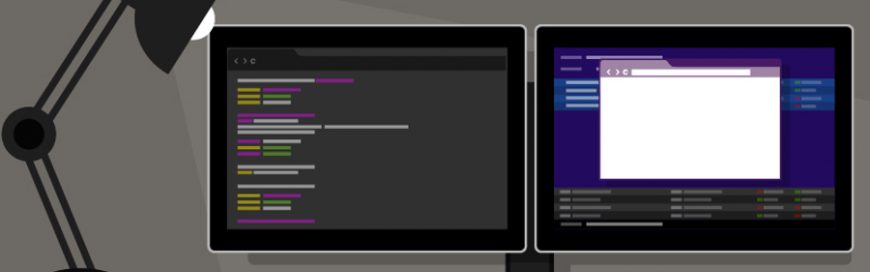
Many employees are uncomfortable using two monitors at their desk, so it’s no surprise that dual monitor setups aren’t as popular as single monitor setups. But working with two screens provides ways for employees to work more productively. Here’s a look at some of the main reasons why your employees’ desktops should be upgraded to two monitors.

Enhanced productivity
Published studies conclude that by working with dual monitors, overall productivity increases by 20-50%. Computer programmers, for example, can use one screen for source coding and the other for programming; by using dual monitors, they no longer need to toggle back and forth between tabs. This reduces error and frees up time to complete more projects.

Better multitasking
Efficient multitasking requires adequate screen space to keep multiple applications simultaneously visible — a view that single monitors alone simply cannot accommodate. Workers who require computers, like customer service reps and web designers, would no longer waste time switching between tabs and resizing windows to fit the limited space; they could now focus on completing their tasks accurately and efficiently.

Easier cutting and pasting
This reason resonates with jobs that call for creating newsletters or PowerPoint presentations. Dual monitors would eliminate the need for alternating between tabs and scrolling up and down as you work. Also, the enhanced visibility reduces chances of making mistakes and thus losing more time fixing them.

Image and video editing
With dual monitors, the days of stacking numerous editing tools on top of the image or video you’re working on are long gone. Instead of your screen looking like a game of Mahjong, you can put the editing tools on one screen and leave the image on the other. With better visibility, you’re less likely to commit errors and more likely to be finessed, and you’re not sacrificing valuable working time in the process.

Product comparison
You want to buy a camera, and you have two models in mind. It’s time to make a decision, so you have to compare their specs. If you had only one monitor, you’d need to go back and forth from one tab to another. But if you had two monitors, you could view the models side-by-side to help you clearly see their differences and make an informed purchase.

Dual monitors benefit almost every industry because of the enhanced visibility, larger screen space, and how you can briefly nap behind them without getting caught Using dual monitors can enhance even your leisure time activities as well.

Broaden your horizons by getting in touch with us. We’ll answer any questions you have.

Published with permission from TechAdvisory.org. Source.

The post Perks of using dual monitors appeared first on Parallel Edge, Inc.


Source: Pronto

What you need to know about e-commerce & AI

What you need to know about e-commerce & AI

Many business owners are looking to artificial intelligence (AI, or “machine learning”) for its potential to improve communications with their customers. It is predicted that by 2020, 85% of all interactions will originate from machine learning “bots.” If you operate an e-commerce business and are wondering how you can benefit from bots, you’re in luck. We’ve compiled a few of the most important reasons to adopt AI for e-commerce.

Predicting what your customers want

There are many ways AI can benefit businesses and consumers. For example, machine learning algorithms can identify customers’ habits and their interests, simply based on their search histories. Properly configured, AI can analyze customers’ shopping behaviors to customize the online experience based on a variety of factors like browsing pattern and purchase history.

Product recommendations, pairings, and promotions can also be targeted to individuals, improving the customer experience and your bottom line.

More intuitive product recommendations

Machine learning is also great for cataloging products. In the past, businesses would send out cumbersome product catalogs that made it difficult for customers to find what they were looking for. In the near future, customers will be able to upload photographs of clothing that’s similar to what they want to purchase. Through AI, a website will be able to analyze the photographs and create a catalog of suggestions based on the uploaded image.

Customers can still talk to a “representative”

With advances in “plain language” systems, more and more users will rely on e-commerce over face-to-face sales interactions. Machine learning is getting better at interpreting conversations, and answering with natural-sounding responses.

If the choice is either searching “Blue summer dress,” or “Billowy summer dress in a warm blue color,” which do you think would make customers’ shopping experience better?

By replicating the in-person shopping experience over the internet, businesses can shift away from brick and mortar overheads to an e-commerce-centered structure. They will realize significant savings on capital expenditures and human resource investment, as well as reduce costly human errors.

If you’re ready to begin integrating more “machine learning” into your business model, we already have the means to make that happen. Contact us as soon as you’re ready to transform your e-commerce business into a money-making powerhouse!

Published with permission from TechAdvisory.org. Source.

The post What you need to know about e-commerce & AI appeared first on Parallel Edge, Inc.


Source: Pronto

The pitfalls of business continuity planning

The pitfalls of business continuity planning

Your service provider, tasked with looking after your company’s IT, has kept your business up and running for the past 10 years. Unfortunately, that kind of longevity in developing continuity plans can result in some providers overlooking or underestimating certain issues. Here are some of them.

Over-optimistic testing

The initial testing attempt is usually the most important. It’s when IT service providers can pinpoint possible weak points in the recovery plan. However, what usually happens is that they test the system in full, instead of via a step-by-step process. This results in them missing out specific points, with too many factors overwhelming them all at the same time.

Insufficient remote user licenses

A remote user license is given by service providers to businesses so that when a disaster strikes, employees can log in to a remote desktop software. However, a provider may only have a limited number of licenses. In some cases, more employees will need to have access to the remote desktop software than a provider’s license can allow.

Lost digital IDs

When a disaster strikes, employees will usually need their digital IDs so they can log in to the provider’s remote system while their own system at the office is being restored. However, digital IDs are tied to an employee’s desktop, and when a desktop is being backed up, they are not automatically saved. So when an employee goes back to using their ‘ready and restored’ desktop, they are unable to access the system with their previous digital ID.

Absence of a communications strategy

IT service providers will use email to notify and communicate with business owners and their employees when a disaster happens. However, this form of communication may not always be reliable in certain cases, such as when the Internet is cut off, or there are spam intrusions. Third-party notification systems are available, but they are quite expensive, and some providers sell them as a pricey add-on service.

Backups that require labored validation

After a system has been restored, IT technicians and business owners need to check whether the restoration is thorough and complete. This validation becomes a waste of time and effort when the log reports are not easy to compare. This usually happens when IT service providers utilize backup applications that do not come with their own log modules, and have to be acquired separately.

These are just some reasons why business continuity plans fail. It is important for business owners to be involved with any process that pertains to their IT infrastructure. Just because you believe something works doesn’t necessarily mean that it works correctly or effectively. If you have questions regarding your business continuity plan, get in touch with our experts today.

Published with permission from TechAdvisory.org. Source.

The post The pitfalls of business continuity planning appeared first on Parallel Edge, Inc.


Source: Pronto

7 ways to more retweets

7 ways to more retweets

It can be discouraging for any business to post a thoughtful tweet in the morning just to see that it barely has any retweets by the end of the day. To maximize your tweets’ exposure, consider these 7 ways to increase your retweets.

Schedule your tweets

There is absolutely no point in tweeting out any content if your audience isn’t even awake for it. That’s why it’s important for you to tweet at the right time to get the most retweets. Most people are likely to retweet between 2pm and 6pm. However, if your followers live in different time zones and countries, the time you should be tweeting may vary. Twitter tools like Tweriod track down the geographical distribution of your audience and pinpoints the optimal time you should be tweeting to get the most retweets.

Use links

The next time you tweet out something, try embedding a link in your post. Whether it’s news, sports, or celebrity updates, people will put some effort in staying up to date with their interests. Studies have also shown that links to instructional posts get the most amount of retweets as well. The problem is, 140 characters is not enough content for your followers. So by satisfying your audience’s curiosity, you motivate them to pay you back by sharing your tweet out to their friends.

Ask for retweets

This is perhaps the most obvious tactic to get some retweets. Using call to action phrases such as “please retweet” significantly increases your chances of a retweet. Of course, you probably aren’t the only one asking for retweets. Adding something to sweeten deal, like a prize for one lucky person who retweets you, gives people incentive to do so.

Use visuals

Intriguing images can inspire retweets. Images are a great way to convey a lot of information in a short amount of time, and social media users love that. Some have found that using colorful images and infographics in their tweets significantly increased their engagement rates and led to more followers retweeting their content. It’s probably because there’s just more content to engage with compared to a brief 140 character thought.

Use retweetable words

Research has shown that some words are more retweetable than others. Words like you, twitter, please, retweet, post, blog, social, free, media, help are the top 10 most retweetable words. However common-use words in any conversation such as “lol, haha, work, sleep or watching” are less likely to get retweeted. Unless you’re someone incredibly famous, it’s best to avoid using conversation filler words and stick to the buzzwords that encourage people to share your tweets out to everyone they know.

Use quotes

Quotes express a lot in one simple line, making it perfect for any Twitter posts. Depending on your audience, a thoughtful quote can really move their fingers to click that retweet button. The next time you’re running out of ideas for tweets, dig up some good quotes relevant to your topic to get those retweets going. However, don’t continuously plug in quotes into your tweets. The trick is to do it occasionally, so you don’t risk people tuning out of your tweets.

#Hashtag

You’ll notice that the more popular tweets tend to have at least one hashtag. Using hashtags on keywords helps categorize your tweets with similar ones, giving your posts a bit more reach and, hopefully, more retweets. Just make sure you don’t overdo it as #thiscanbequiteannoying.

We get that small business may find it tough getting their name discovered among so many social media accounts. But if you consider some or all of these Twitter tactics, you have a better chance of getting more eyes on your tweets. If you want to learn more about useful Twitter tactics to increase your exposure and engagement, give us a call today.

Published with permission from TechAdvisory.org. Source.

The post 7 ways to more retweets appeared first on Parallel Edge, Inc.


Source: Pronto

Time-saving tips for Microsoft Word

Time-saving tips for Microsoft Word

Microsoft Word remains one of the most popular and user-friendly apps for business. It is compatible with both Windows and Mac and can be used to create a wide array of business documents. While millions of people use Word every day, most don’t know how to maximize its potential. And since it is constantly being updated, you need to check out these tips that will help you save time.

Edit simultaneously
You and your colleagues can now edit the same Word document at the same time. Just save yours in the cloud on OneDrive, click Share, then send the link to your colleagues. You’ll even be able to see them editing in real time.

Continue your work with Word Online
Don’t have the Word app on your computer, tablet, or smartphone? Go to word.office.com, sign in with your Microsoft account, and open Word Online, the browser version of Word. By clicking the blue Share button, your colleagues can access your document using Word Online or the Word app, which means anyone with the link and an internet connection can jump right in

Keep editorial control
With the Track Changes function, Word monitors all the edits that everyone makes to your document so you can go through the changes and accept or reject them accordingly.

To turn on Track Changes, click on the Review tab then select Track Changes. When reviewing a colleague’s edits, you have control to click on Accept or Reject as you see fit.

Format the easy way: Write first, format later
The Style Gallery in Word makes it easy to format your document, despite the huge number of font types, sizes, colors, and effects to choose from. After finishing writing and editing your document, click the Home tab and you will see the Style Gallery prominently on top. Select the appropriate Headings in the font, size, and color that you like, and change any other text in any way you like — just make sure you don’t make any changes to the actual content that’s already been edited!

Insert photos faster, more conveniently
No need to open your browser to look for photos for your document. Just place the cursor on the area where you intend to insert the photo, click on the Insert tab, select Online pictures (type “clip art” on the search box if that’s what you need), select a photo, then click Insert.

Edit a PDF file
Click on the File menu, select Open, and choose Browse. Highlight the PDF you want to edit, then click Open. Word will convert files to the new format using text recognition, so double-check if the conversion is correct. Make the appropriate changes, then click File, then Save As, then Browse. A “Save as type:” dropdown menu will appear at which point you will choose “PDF” then click Save.

These tips may seem straightforward, but over time they can make a big difference in helping you work faster. Want to learn more Word tricks and tips? Get in touch with our Microsoft Office experts today!

Published with permission from TechAdvisory.org. Source.

The post Time-saving tips for Microsoft Word appeared first on Parallel Edge, Inc.


Source: Pronto

Spectre makes a comeback

Spectre makes a comeback

When one cyberattack is stopped, another more powerful variant almost always takes its place. It happens all the time with ransomware, computer viruses, and Trojan horses. Recently, this has become the case with Spectre attacks, which exploit a fundamental flaw in modern computer chips. Here’s everything you need to know.

Spectre 101
For those who don’t know, Spectre is a vulnerability in modern computer chips like Intel and AMD that allows hackers to steal confidential information stored in an application’s memory, including passwords, instant messages, and emails. Malicious code running on a computer or web browser could be used to exploit this vulnerability, but ever since Spectre was discovered, Microsoft, AMD, Intel, and other tech companies released a series of updates to fix it.

What is NetSpectre?
To perform Spectre attacks, malware would have to run on a targeted machine to extract sensitive data. But in late July, Austrian security researchers found a way to launch Spectre-style attacks remotely without locally installed malware. The new attack is called NetSpectre and it can be conducted over a local area network or via the cloud.

So far, it’s impractical for average hackers to use this method to steal data. In tests, researchers were able to steal data at a rate of between 15 to 60 bits per hour, which means it would take days to gather corporate secrets and passwords. As such, NetSpectre will probably be used by hackers who want to target specific individuals but don’t want to resort to obvious methods like phishing scams or spyware.

Experts also warn that while NetSpectre may be impractical now, hackers may develop faster and more powerful variants in the future.

How should you protect your business?
NetSpectre attacks exploit the same vulnerabilities as the original Spectre so it’s important to install the latest firmware and security updates. You should also secure your networks with advanced firewalls and intrusion prevention systems to detect potential NetSpectre attacks.

Last but not least, working with a reputable managed services provider that offers proactive network monitoring and security consulting services can go a long way in protecting your business from a slew of cyberthreats.

If you’re looking for a leading managed security services provider, why not talk to us? We provide cutting-edge security software and comprehensive, 24/7 support. Call us today for more information.

Published with permission from TechAdvisory.org. Source.

The post Spectre makes a comeback appeared first on Parallel Edge, Inc.


Source: Pronto

Are you sufficiently cooling your servers?

Are you sufficiently cooling your servers?

In this day and age, almost every business employs some type of server management. If yours is hosted locally, temperature control could mean the difference between running smoothly and running into the ground. Understanding how to properly cool your servers prevents data loss and ensures the longevity of your hardware’s life.

How does temperature affect my servers?

High temperatures in server hardware can result in different types of damage. A server that completely crashes for any reason results in costly data loss and service interruptions, but the unbiased advisory organization Uptime Institute warns that overheating that doesn’t always result in total failure. Every 18 degrees higher than 70 degrees Fahrenheit, hardware reliability decreases by 50%. This decrease in reliability can be just as, if not more, expensive for your hardware budget in the long run.

Cooling methods can’t just be implemented and forgotten; they must be closely monitored to ensure the health of your server hardware in the short and long term. Options for temperature management range from simple low-budget solutions to expensive outsourced alternatives. Determining your server management budget will greatly depend on what types of methods you intend to implement at your SMB.

Cooling methods

Which system you use to cool your server largely depends on how much power your hardware is using. The more watts a computer needs to operate, the harder it’s working. This number will determine the scope of your temperature management needs.

For example, PCWorld says passive temperature control is adequate for any equipment operating at less than 400 watts. This includes simple solutions like positioning your server away from walls, low ceilings, cable clusters, and anything else that can block hot air from dissipating naturally.

For computers using between 400 and 2,000 watts, strategic ventilation becomes a necessity. Adding passive ventilation is viable up to 700 watts, but fan-assisted ventilation will be required above that and up to 2,000 watts. With the increased power consumption, temperatures will rise, and air movement needs to be more closely managed. At this stage, simple vent and oscillating fans will suffice.

Anything higher than 2,000 watts needs dedicated cooling solutions. This means air-cooled units to actively reduce server room temperature. Depending on the size and arrangement of the space, a simple self-contained unit may be enough to reduce temperatures to acceptable ranges. But if you’re not sure, you should schedule a consultation with a vendor to consider more drastic cooling and monitoring methods.

Keeping your servers running at ideal temperatures means smoother data operations, lower hardware budgets, and one less thing to worry about at your SMB. As your business continues to grow and develop, keep close tabs on increasing server loads — it could save you from devastating data loss. If you need more detailed advice about server management, or have any other questions about your hardware setup, contact us today.

Published with permission from TechAdvisory.org. Source.

The post Are you sufficiently cooling your servers? appeared first on Parallel Edge, Inc.


Source: Pronto

Work productively with Chrome extensions

Work productively with Chrome extensions

Well over half of all surveyed internet users utilize Google’s Chrome web browser, and it’s not difficult to see why. The ability to customize your browser via third party apps, extensions, and more makes web surfing a truly personalized experience. Keep on reading to discover the most practical extensions to enhance productivity.

Taco

The first on our list is the Taco extension that focuses on integration to boost productivity. It works by replacing Chrome’s ‘new tab’ page with a customizable framework for all of your third-party services. With various templates and layouts, you can organize and combine tasks and notes from over 40 services including Evernote, Google, Salesforce, Trello, and more.

Any time you’re about to start a new project, simply open a new tab to search for the app you need. But before you hit that ‘Google Search’ button, drag the task item into your ‘doing’ lane and off you go. Once you’re done with work and need to check on the status of your home team’s game, simply open a new tab, move the task to your finished lane, and check the score.

Strict Workflow

Strict Workflow is based on the renowned Pomodoro productivity approach. It’s a time management technique that lets you focus on your task at hand and eliminates any distraction by having you block non-work related websites during your 25 minute work time and unblock it on your appointed 5-minute break.

OneTab

A lot of us open tabs as notes, reminders, and things to check again some time in the distant future, which is why you’ll love OneTab. It’s ideal for work days when you find a stack of tabs sandwiched along the top of your screen, which can cripple your available memory. This extension allows you to condense all of your open tabs into one page that lists each of them for easy access when you’re ready to return to them.

JustRead

When it’s time to slow down your browsing and read the most recent election article or a recipe you want to try, the page is often cluttered with social sharing buttons, advertisements and stock photos. With the JustRead extension, all of this gets cleared away with the press of a button, leaving you with a clean, text-only page.

These are just some of our favorite extensions. If you’d like more suggestions or support for anything Google related, we’re here for you — don’t hesitate to call.

Published with permission from TechAdvisory.org. Source.

The post Work productively with Chrome extensions appeared first on Parallel Edge, Inc.


Source: Pronto