6 Smart ways to strengthen security in Microsoft Teams

6 Smart ways to strengthen security in Microsoft Teams

Employees use Microsoft Teams to chat, collaborate on files, host meetings, and coordinate projects, making platform security essential for protecting company data and maintaining smooth operations. The good news is that with the right setup and a few proactive practices, your organization can make its Microsoft Teams platform significantly more secure.

Carefully manage third-party apps

Microsoft Teams allows organizations to add various third-party applications to expand its functionality. While these integrations can boost productivity, they can also introduce potential risks if they’re not properly reviewed.

Before allowing any external app in Teams, administrators should evaluate what permissions it requests. Some apps may ask for access to files, messages, or user information. Only approve applications that are trustworthy and necessary for business use.

It’s also a good idea to periodically review the apps already installed in your Teams environment. Removing outdated or unused integrations reduces the number of possible security vulnerabilities.

Use security groups to organize access

Not every employee needs access to every workspace or file. Microsoft Teams allows administrators to create security groups that define who can access certain resources.

For example, finance staff may need access to financial reports and budgeting channels, while HR teams require access to employee-related documents. Grouping users by role or department makes it easier to apply consistent security settings and set access restrictions for a wide range of people.

Set clear access policies

In addition to grouping users, organizations should establish detailed access policies for Teams. These policies define who can view, edit, or share files and which channels different users can enter.

Many companies use Microsoft’s identity management tools to enforce these policies. Access rules, for instance, can be applied based on factors such as a user’s device, location, or account status. If someone attempts to sign in from an unfamiliar location or from a device that doesn’t meet company security standards, the system can block or restrict their access automatically.

Take advantage of Microsoft 365 security features

One advantage of Microsoft Teams is its close integration with the broader Microsoft 365 ecosystem, which allows organizations to use several built-in protections to improve security.

Tools such as Microsoft Defender can scan links and files shared in Teams conversations, helping detect malicious content before users interact with it. Data protection features can also prevent employees from sharing confidential information outside the company.

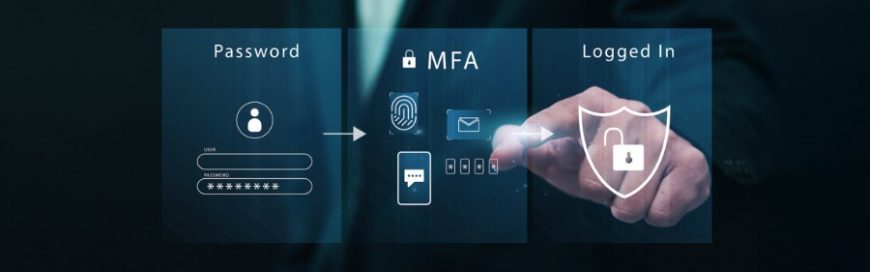
Multifactor authentication is another important safeguard. Instead of just using a password, users must also provide a second form of verification to confirm their identity (e.g., a code sent to a registered phone number). This makes it much harder for unauthorized individuals to access your account even if they manage to steal your password.

Monitor activity regularly

Security tools are most effective when administrators actively review them. Microsoft provides auditing and reporting capabilities that allow organizations to track activity within Teams.

These reports can reveal unusual patterns, such as large amounts of file sharing with external users, sudden permission changes, or login attempts from unexpected locations. Spotting these behaviors early can help IT teams investigate and prevent cyberthreats.

Train employees on safe usage

Even the best technology can’t replace informed users. To improve security, organizations should regularly educate staff on best practices such as creating strong passwords, spotting suspicious links, and avoiding unapproved apps in Teams.

Employees should also understand the company’s policies regarding sensitive data and know how to report suspicious activity. Ongoing training keeps security top of mind and helps prevent simple mistakes that could lead to larger problems.

Need a hand in safeguarding your Microsoft environment or improving your overall security posture? Contact our team today.

Published with permission from TechAdvisory.org. Source.

“}]] 

Enhance Google Chrome with features for speed and productivity

Enhance Google Chrome with features for speed and productivity

Is Google Chrome draining your computer’s memory and slowing you down? Recent updates have introduced powerful built-in tools designed to boost performance, no complicated fixes required. This guide will show you how to turn your sluggish browser into a high-speed productivity powerhouse.

Performance Detection

Instead of manually hunting down background processes that slow down your computer, let Chrome do the heavy lifting for you. The browser’s new Performance Detection tool proactively scans for tabs that are hogging your system’s resources. When it finds one, it sends a performance issue alert you with a simple Fix now prompt. Clicking it instantly deactivates these resource-heavy background tabs, giving a noticeable speed boost to your active tab. You can find and manage this feature under Settings > Performance.

Upgraded Memory Saver modes

Forget risky workarounds such as setting up a temporary RAM disk. Chrome’s built-in Memory Saver feature has been upgraded to safely free up memory from inactive tabs. It now offers three distinct modes tailored to your hardware and browsing style:

  • Moderate: Deactivates tabs based on your system’s current needs, ensuring smooth performance
  • Balanced: Considers both your system’s resources and your personal browsing habits for an optimized experience
  • Maximum: Deactivates tabs the moment you switch away, delivering peak speed and responsiveness

To access this feature, go to Settings > Performance, then scroll down to Memory Saver and select the mode that you want.

Page preloading

Enhance your browsing experience with Chrome’s page preloading feature, designed to make websites feel like they load instantly. By analyzing your browsing patterns, Chrome predicts which link you’re likely to click next and begins loading the page in the background. This means that by the time you click, most of the work is already done.

To enable this feature, go to Settings > Performance and toggle on “Preload pages.” Enjoy faster, seamless navigation with this simple adjustment.

Split view

Having too many tabs open doesn’t just consume memory; it hurts your productivity. Instead of constantly toggling between tabs, you can use Chrome’s split-view feature. Simply right-click a tab and select Add tab to new split view to display two web pages side by side in a single window. This reduces clutter and helps create a smoother, more efficient workflow.

Automatic updates

The most fundamental step to maintaining browser speed is ensuring you are running the latest version. Google regularly releases performance optimizations and important security patches. To check which version you’re using, go to Settings > About Chrome, and take a moment to install any available updates to keep your browser running smoothly.

Optimizing your browser is just the first step toward a seamless digital experience. For more expert tech tips or to stay ahead with the latest updates, reach out to our IT specialists today.

Published with permission from TechAdvisory.org. Source.

“}]] 

Disaster recovery misconceptions that could put your business at risk

Disaster recovery misconceptions that could put your business at risk

Many businesses believe they’re protected simply because they have backups or use cloud services. This article explores common disaster recovery myths and explains why a comprehensive, tested recovery strategy is essential for long-term business continuity.

When business leaders think about disaster recovery (DR), the conversation often centers on backups. If the data is backed up, the assumption is that the business is protected.

Unfortunately, that assumption alone doesn’t tell the whole story.

Disaster recovery is not just about restoring files after a crisis. It’s about ensuring your organization can continue operating — quickly and reliably — when the unexpected happens. Yet, many companies still base their strategies on outdated beliefs that leave them vulnerable to downtime, financial loss, and reputational damage.

Here are several common disaster recovery misconceptions that continue to create risk for businesses of all sizes.

Myth 1: Backups and disaster recovery are the same thing

Backups are a critical component of protection, but they are only one piece of the puzzle.

A backup simply creates a copy of your data. Disaster recovery, on the other hand, is a comprehensive plan that outlines how your systems, applications, and operations will be restored after an incident. It addresses questions such as:

    • How quickly can systems be brought back online?
    • Which applications must be prioritized?
    • Who is responsible for executing the recovery plan?

Without a structured DR strategy, even the best backup system may not prevent extended downtime.

Myth 2: Disaster recovery is only for large enterprises

Smaller organizations sometimes assume they are too small to be targeted by cybercriminals or too insignificant to require a formal DR plan.

In reality, small and mid-sized businesses are often more vulnerable. They typically have fewer internal resources and less redundancy in their systems. A prolonged outage can have a disproportionately large impact, especially if customer data, billing systems, or communication platforms are unavailable.

Myth 3: The cloud eliminates the need for disaster recovery

Cloud platforms provide built-in resilience, but they do not automatically guarantee business continuity.

Many cloud providers operate under a shared responsibility model. While they maintain infrastructure availability, protecting your specific data and configurations often remains your responsibility. Accidental deletions, misconfigurations, ransomware, or service disruptions can still occur.

Cloud services enhance reliability, but they do not replace the need for a defined DR plan.

Myth 4: If we’ve never had a disaster, we’re fine

Cyberattacks, hardware failures, power outages, natural disasters, and even human error can disrupt operations at any time. The increasing frequency of ransomware incidents and extreme weather events highlights how quickly circumstances can change.

A lack of previous incidents should not be mistaken for proof of resilience. Disaster recovery planning is about preparing for scenarios you hope never happen.

Myth 5: Recovery plans don’t need regular testing

Creating a disaster recovery document and filing it away provides little real protection.
Technology environments evolve constantly. New applications are added, employees join or leave, and infrastructure changes. If recovery procedures are not tested regularly, there is no guarantee they will function when needed.

Routine testing identifies gaps, clarifies roles, and ensures recovery time objectives are realistic. It also builds confidence among leadership that systems can be restored within acceptable timeframes.

Myth 6: Cybersecurity measures make disaster recovery unnecessary

Strong cybersecurity controls reduce risk, but they do not eliminate it.

No organization can guarantee complete immunity from breaches or disruptions. A layered security approach should include both preventative measures and recovery planning. The ability to restore systems quickly is often what determines how severe the impact of an incident will be.

Disaster recovery is not a sign of weak security. It is a sign of responsible risk management.

Why disaster recovery deserves executive attention

Disaster recovery is not solely an IT initiative. It is a strategic business function.
Downtime affects revenue, customer trust, regulatory compliance, and employee productivity. In highly regulated industries, extended outages can also introduce legal and financial penalties.

An effective DR strategy should define:

  • Recovery time objectives (how quickly systems must be restored)
  • Recovery point objectives (how much data loss is acceptable)
  • Clear communication protocols
  • Assigned responsibilities across departments

When leadership treats disaster recovery as a business priority rather than a technical afterthought, organizations are better positioned to respond with speed and clarity.

Even the most well-run organizations can be caught off guard without a clear recovery strategy in place. If you’re unsure where to start, reach out to us to get an experienced IT advisor who can assess your environment and help you build a recovery strategy.

Published with permission from TechAdvisory.org. Source.

“}]] 

One login, total access: Why businesses are switching to single sign-on

One login, total access: Why businesses are switching to single sign-on

Tired of managing endless passwords across your business apps? Single sign-on (SSO) offers a secure, streamlined solution that improves productivity while strengthening protection. Here’s why more organizations are making the switch.

The case for using SSO

Most employees are drowning in passwords. Email, project management tools, HR portals, cloud storage, accounting platforms — the list keeps growing. When people are forced to remember dozens of logins, they often take shortcuts. They reuse passwords. They write them down. They choose something easy to guess.

That’s where security problems begin.

Fortunately, SSO offers a smarter way forward. Instead of asking employees to manage a separate login for every application, SSO allows them to sign in once and securely access everything they need.

What single sign-on really means

Single sign-on is exactly what it sounds like: one login that opens many doors. With SSO in place, employees use a single set of credentials — typically tied to a trusted provider such as Microsoft or Google — to access multiple business applications. Once their credentials are verified, they don’t have to repeatedly enter passwords as they move between tools throughout the day.

It’s similar to using a keycard at the office. You swipe once, and you can access the areas you’re authorized to enter without pulling out a different key each time.

How does SSO work?

Behind the scenes, three players are involved: the user (an employee); the identity provider (such as Microsoft Azure AD or Google); and the business application (e.g., Salesforce or your HR software).

When an employee logs in, the identity provider confirms their identity. Once verified, it sends a secure digital confirmation to the application. The application trusts that confirmation and grants access.

The important part? The employee doesn’t have to log in again for every tool connected to the system. It all happens smoothly in the background.

Why businesses are moving to SSO

While convenience is a major benefit, security and productivity are the real game changers.

Reduced risks

Reusing passwords across different platforms means that one compromised account can give an attacker access to multiple systems. SSO reduces that risk by centralizing authentication, protecting one well-secured gateway instead of dozens of weak entry points.

Increased productivity

Those extra login prompts throughout the day add up. Password resets alone can drain IT resources and frustrate employees. With SSO, workers can log in once and focus on their tasks, rather than deal with access issues. IT teams also spend less time handling “I forgot my password” tickets.

Faster onboarding and offboarding

When a new employee joins, IT can grant access to all necessary systems at once. When someone leaves, access can be revoked instantly from one central location.

There’s no need to track down dozens of separate accounts. That level of control is especially important for maintaining security.

A better user experience

Modern workplaces rely on cloud applications. Employees switch between tools constantly. SSO removes friction from that experience, creating a smoother workflow across devices and platforms.

The result? Less frustration, fewer interruptions, and more consistent access.

Is SSO completely risk-free?

No solution is perfect. Since SSO relies on a single entry point, protecting that login is crucial. If SSO credentials are compromised, an unauthorized user could gain a digital master key and gain access to all your sensitive systems. That’s why strong passwords and multifactor authentication are essential companions to SSO. When implemented properly with these safeguards, SSO undeniably strengthens security.

The bottom line

As companies continue to adopt cloud services and remote work models, a centralized, secure authentication system becomes foundational. If your team is still juggling dozens of passwords, it’s time to rethink how access is managed. A streamlined login experience could be one of the simplest upgrades you make this year — and one of the most impactful.

Published with permission from TechAdvisory.org. Source.

“}]] 

The hidden weaknesses of multifactor authentication

The hidden weaknesses of multifactor authentication

Multifactor authentication (MFA) works by requiring users to provide more than one form of identification when logging into a system or account. This extra layer of security is meant to prevent unauthorized access and protect sensitive information. However, while MFA may seem like a foolproof solution, it actually has its own set of vulnerabilities that can be exploited by cybercriminals.

How cybercriminals can bypass MFA

There are three main ways cybercriminals today are circumventing MFA security measures:

Phishing attacks
Phishing has long been a method used by cybercriminals to steal sensitive information. They now use it to compromise MFA, especially when users are tricked into providing their authentication codes. Through deceptive emails or fake login pages, attackers can collect the codes needed to bypass MFA protections.

SIM swapping
SIM swapping is a type of fraud where cybercriminals take control of your phone number. Once they’ve gained access, they can receive text messages, including MFA codes, intended for you. This tactic allows them to bypass the second layer of security MFA provides and gain access to your account.

MFA fatigue
In some cases, attackers target users with excessive MFA requests to wear them down. By overwhelming the individual with repeated prompts, the user may eventually approve a fraudulent request simply out of frustration or exhaustion.

How to defend against MFA attacks

To protect user accounts and data, businesses should implement the following security measures:

Risk-based authentication
Risk-based authentication helps reduce vulnerabilities by adjusting security checks based on the level of risk for each login attempt. Instead of applying the same checks every time, the system evaluates factors such as the user’s location, device, and usual activity.

For example, if you normally log in from your laptop in New York, but a login attempt occurs from a new device in another country, the system will flag it as high risk. In such cases, it prompts additional verification through MFA to confirm your identity. By using risk-based authentication, you get stronger protection during risky situations without the need for constant, unnecessary checks, thereby preventing MFA fatigue.

Hardware-based MFA
Hardware-based MFA uses a physical device, such as a security key or USB stick, to verify your identity. Instead of relying on codes sent via SMS or email, you plug the device into your computer or tap it on your phone to approve a login. Since the device is physically in your possession, it’s much harder for attackers to steal or intercept the authentication code. Using this method makes MFA much more secure because a cybercriminal would need the actual hardware key to bypass the authentication process.

Access privilege reviews
Regularly reviewing and adjusting access privileges guarantees that only authorized individuals have access to sensitive information. Over time, employees or users might gain unnecessary permissions, which can become a security risk if an account is compromised. Regularly checking and adjusting who has access to what limits the potential damage if cybercriminals manage to compromise MFA and break into your accounts.

Strengthen password reset process
Password reset procedures can be a vulnerable point for attackers, especially when they don’t require multiple verification steps. To reduce this risk, make sure users must confirm their identity through more than one method during the reset process — whether it’s through email, text, or security questions. Without these additional checks, attackers can easily use tactics such as phishing or social engineering to reset passwords and bypass MFA protections.

Don’t rely on SMS for MFA
SMS-based MFAs are less secure because hackers can simply intercept text messages or use SIM swapping to get one-time passcodes. Instead, use authentication apps or hardware keys for MFA. These methods are more secure and harder to bypass, giving you better protection for your accounts.

Secure your accounts with comprehensive protection

Despite the weaknesses of MFA, it’s still one of the best ways to protect your accounts from unauthorized access. However, MFA should not be your only line of defense. It’s important to have a well-rounded cybersecurity framework that includes strong passwords, regular software updates, and employee training on phishing and other online threats.

If you don’t know where to start fortifying your user accounts, our experts are happy to help. We can provide the guidance and tools necessary to keep your data safe and secure. Contact us today for more information on our cybersecurity services.

Published with permission from TechAdvisory.org. Source.

“}]] 

Questions to ask before upgrading your servers

Questions to ask before upgrading your servers

Upgrading your company’s servers is a crucial decision that affects everything from operations to long-term growth. Rather than rushing into a replacement, it’s important to pause and ask the right questions. The following questions will help you evaluate your current infrastructure and determine whether replacing your servers is the best course of action.

How well are your current servers performing?

Take stock of your existing equipment. How old are your servers? Are they still performing well? Have you noticed any recurring issues, such as slowdowns or unexpected outages? The answers will enable you to gauge the health of your infrastructure and whether it’s time for an upgrade. Regular performance reviews can also highlight potential bottlenecks that might require immediate attention.

Are your current servers delivering the performance you need?

It’s essential to assess whether your servers are meeting your current and future requirements. Check if they can handle your business’s storage, processing, and application demands. Look at key metrics such as CPU usage and memory utilization to identify any inefficiencies. By understanding the performance gaps now, you’ll be able to select a new server solution that meets the demands of your growing business.

What budget are you working with?

Servers are a huge investment, so you need to define a realistic budget for your upgrade. Along with the initial cost of the servers, factor in ongoing expenses such as software licenses, maintenance, and support services. You may also want to consider cloud hosting or server leasing, which might provide a more affordable alternative to purchasing new equipment outright. A well-defined budget helps you narrow down your options and prevent unnecessary overspending.

Will the new servers integrate smoothly with your existing infrastructure?

Before making a final decision, check if the new servers will function cohesively with your existing applications, network, and storage systems. Any incompatibility can disrupt business operations and lead to costly delays.

Are the new servers equipped with the latest security features?

Upgrading your servers is a great opportunity to enhance your security measures. Consider your company’s security and compliance requirements to guarantee that the new servers come with built-in protections such as data encryption, access control, and intrusion detection. The new system should meet industry regulations and safeguard sensitive data, allowing you to minimize the risk of security breaches and comply with necessary regulations and standards.

What is the expected lifespan of your new servers?

When selecting new servers, consider their expected longevity. A server with a longer life cycle offers better long-term value, saving you money and reducing the need for frequent upgrades. Make sure the vendor you choose offers ongoing support, updates, and patches.

How will your servers scale as your business grows?

As you look ahead, think about how your server infrastructure will support the future growth of your business. Will the new servers be able to accommodate increased traffic, larger data sets, or more demanding applications? Consider features such as scalability, virtualization, and the ability to add server nodes as your business expands. A future-proof server solution can grow with your company, ensuring that it remains efficient and capable of supporting new challenges.

Asking these important questions will help you make a well-informed decision about your server replacement, supporting your business for years to come.

If you need help choosing and deploying your new company servers, reach out to our IT experts today.

Published with permission from TechAdvisory.org. Source.

“}]] 

How Microsoft Whiteboard brings visual collaboration to remote teams

How Microsoft Whiteboard brings visual collaboration to remote teams

Modern work rarely happens in one place anymore. While emails and chat apps handle conversations well, they often fall short when teams need to brainstorm, plan, or visualize ideas together. That’s where Microsoft Whiteboard steps in. Let’s explore how businesses can use the app’s tools, templates, and sharing features to improve teamwork and turn ideas into action.

What is Microsoft Whiteboard?

Microsoft Whiteboard is a shared digital workspace that allows people to sketch ideas, organize thoughts, and collaborate visually in real time. Whether you’re outlining a new project, mapping out a process, or hosting a creative brainstorming session, Whiteboard gives teams the flexibility of a physical whiteboard without the physical limitations.

Getting started on any device

Microsoft Whiteboard is available on Windows, web browsers, and mobile devices running iOS or Android. Once you sign in, you’re taken to a dashboard that shows all your existing whiteboards in one place. From there, creating a new board is as simple as selecting the option to start fresh.

A new whiteboard opens as a blank, infinite canvas. Along the side, you’ll find a panel filled with tools you can use to build your board, while drawing tools are placed at the top for easy access. The layout is designed to be intuitive, even for less tech-savvy users.

Building your ideas visually

Adding content to a whiteboard is straightforward. You can type text directly onto the canvas, draw freehand using pens, or add visual elements such as shapes and images. Each item can be placed anywhere, giving you complete freedom over how ideas are arranged.

Drawing tools are especially useful for quick sketches or highlighting key ideas during meetings. If you’re not comfortable with freehand drawing, shapes provide a clean and structured alternative that keeps things easy to understand.

Editing and organizing content

Once elements are on the board, adjusting them is simple. You can move items around to reorganize ideas, resize them to emphasize key points, or remove anything that’s no longer relevant. Switching between drawing and selection modes lets you either sketch freely or arrange content without leaving accidental marks.

This flexibility makes Microsoft Whiteboard ideal for evolving projects, where ideas shift and layouts need frequent updates.

Using structure to improve clarity

While the open canvas is powerful, structure is what turns a cluttered board into a useful one. Sticky notes are a popular option for capturing ideas quickly. They’re color-coded, easy to move, and perfect for brainstorming sessions where input from multiple people is needed.

For more detailed planning, note grids offer a way to group related ideas into organized sections. These grids keep information aligned and readable, making them ideal for workflows, task lists, or categorizing feedback.

If you don’t want to start from scratch, Microsoft Whiteboard also includes a large collection of templates. You can use these templates for brainstorming, project planning, and design thinking. Each one provides a ready-made structure that you can customize to suit your needs, saving time and reducing guesswork.

Collaborating with others

Collaboration is at the heart of Microsoft Whiteboard. You can invite others to view or edit your board with just a few clicks. Shared boards update in real time, allowing team members to contribute ideas simultaneously, regardless of where they’re working from.

This makes the app especially useful during virtual meetings, workshops, or training sessions where visual input helps keep everyone engaged.

Sharing beyond your team

You may want to share your work without letting others edit it. In those cases, exporting your whiteboard as an image is a practical option. You can save the entire board as a PNG file and share it through email, presentations, or messaging platforms.

This approach is useful when working with external partners or when you need a snapshot of your ideas for documentation purposes.

Making the most of Microsoft Whiteboard

Microsoft Whiteboard isn’t just a drawing tool but a collaboration platform that supports creativity, planning, and teamwork. Used effectively, it becomes a central space where ideas grow, evolve, and come to life.

For more tips on leveraging essential business technology tools, contact our team today.

Published with permission from TechAdvisory.org. Source.

“}]] 

5 Easy fixes for a website that isn’t bringing in business

Getting people to visit your website is hard work, but getting them to actually buy something or pick up the phone is even harder. Plenty of small-business sites look great but don’t actually bring in sales. The good news is that you don’t need to be a tech wizard to fix this issue. We have identified five practical changes you can make today to stop losing sales and start getting more value out of your site.

Make sure your website works on phones

Most of your customers are likely looking you up on a smartphone while they’re on the go. Presenting a tiny, nonresponsive page usually results in lost opportunities.

Aim for font sizes that are clear and instantly readable. Buttons, especially Call Now or Buy buttons, need to be big enough for a thumb to click comfortably. Menus must be easy to tap without hitting the wrong link by mistake.

If a customer has to pinch and zoom to read your service list, they will get frustrated. Frustrated visitors leave. Search engines like Google also prefer sites that work well on phones, so a mobile-friendly design puts you at the top of search results, which helps new customers find you in the first place. Prioritizing the mobile experience ensures you capture the attention of people exactly when they are looking for you.

Keep the design simple and clean

“Less is more” is the golden rule of effective websites. A cluttered site confuses people. Ideally, anyone visiting your site sees and understands your business and next steps in five seconds or less.

Review your homepage and remove unnecessary animations, pop-ups, or dense walls of text. Leave plenty of empty room around your content to keep the design clean. It helps people read faster and highlights your key deals.

Simple websites also load faster. Slow websites make customers impatient; if your page takes too long to show up, users will exit the site before they even see what you offer. A clean, fast design respects your customers’ time and keeps them focused on your products.

Don’t send people away

Many businesses make the mistake of putting Facebook, Instagram, or LinkedIn icons at the very top of their website. It seems like a good way to show you are active, but it often backfires.

If a visitor clicks that icon, they leave your website and go to a social media platform. Once they’re there, they get distracted by notifications, news feeds, and cat videos. They might never come back to your site to finish their purchase.

Push your social media links down to the bottom section of your pages. You want visitors to stay on your site to make a purchase, not go scrolling through a social feed. Let your website do its job of selling your services first. Social media is great for bringing people to your site, but your site should keep them there.

Use real photos, not fake ones

Stock photos, or those generic pictures of people in suits shaking hands or laughing at a salad, look fake. The same goes for AI-generated images. They don’t build trust because customers know they aren’t real. Being a small business means you can leverage your genuine nature. You exist locally and are a real human, which counts for a lot.

Use photos of your actual team, storefront, and products. It’s okay if they aren’t Hollywood quality. Authenticity builds a connection that big corporations can’t match.

Knowing the seller builds confidence in the buyer. Seeing the smiling face of the owner or the inside of your shop creates an emotional connection. It proves you exist and that you care about your work. Replace the generic placeholders with images that tell your unique story.

Be easy to reach

It sounds obvious, but many websites hide their phone number on a Contact page or bury it in small text. If a customer is ready to buy or ask a question, you must remove every barrier standing in their way so they can reach you.

Place your contact number at the top right of the site. Set it up so a quick tap on a mobile screen starts the call. Clearly list your address and email as well.

Don’t play hard to get. Making your contact information prominent reassures customers that you are responsive and available. It invites them to start a conversation, which is the first step toward a sale.

A successful website isn’t just about pretty colors or fancy layouts; it’s about making it easy for customers to say yes. Don’t feel pressured to change your entire digital strategy immediately. Start small. Pick one of these five areas to improve this week, and you will likely see a difference in how people interact with your business.

If you have questions about business IT or need more tech-related tips, reach out to our team today.

Published with permission from TechAdvisory.org. Source.

“}]] 

Easy tips to keep your business safe from data loss

Easy tips to keep your business safe from data loss

Data loss can be fatal for businesses. Losing critical files can lead to financial loss, operational disruption, and irreparable damage to customer trust. To avoid this grim predicament, it’s crucial for businesses to implement the following preventive measures against data loss.

Restrict access privileges to those who need it

Access control defines who can view, change, or share information inside your systems. When permissions align with job responsibilities, sensitive data stays confined to the people who actually need it. Considering that most data breaches stem from users gaining access to information they shouldn’t be privy to, implementing strict access control policies is one of the most crucial steps a business can take to protect their data.

To implement access controls, start by mapping roles to data requirements. A marketing employee may need campaign analytics but has no business touching payroll files or financial records. Group users by function and assign permissions at that level rather than individually. Identity platforms such as Active Directory enable you to monitor and determine access permissions for each role from a centralized console.

As roles change, you should also update permissions accordingly. This applies to both employee promotions and terminations.

Encrypt your data from end to end

Encryption serves as a digital lock on your data, scrambling information so it appears meaningless to anyone without proper authorization. Even if a device is stolen or a transmission is intercepted, encrypted data cannot be read or used without the correct credentials.

A strong encryption approach protects information both while it is stored and while it is moving. Data at rest should be secured with full-disk encryption on laptops, desktops, and servers, so files are protected if hardware is lost, stolen, or accessed improperly. Built-in tools such as BitLocker on Windows and FileVault on macOS handle this automatically once enabled.

Information in transit requires a different layer of protection. Secure communication standards like SSL/TLS encrypt data as it travels across the internet, preventing third parties from viewing or altering it mid-transfer.

Finally, remember that encryption is useless without the proper key. It’s therefore vital to keep your keys secure in hardware security modules or cloud-based services and update them regularly to prevent unauthorized access and limit internal risk.

Update your software as soon as possible

Over time, cybercriminals find new vulnerabilities in software and operating systems that can be exploited to gain access to sensitive data. It’s important to always install the latest updates as soon as they become available because they often include patches for security vulnerabilities.

If the idea of manually updating each piece of software sounds tedious, there are tools that can make the process much simpler. Patch management systems, in particular, take stock of all the software in your network, the version numbers, and what updates are available for each. With this information in hand, they can automate the process of downloading and installing updates across all company devices to maintain consistent security across the board.

Enable data loss prevention (DLP) settings

DLP tools monitor how information moves across your environment. Their job is to detect and block risky behavior before sensitive files leave your control. Once deployed, DLP policies can scan emails, cloud storage, and removable media for restricted data types. For example, DLP policies can be set up to prevent financial reports from being sent outside the company or block uploads to unapproved cloud platforms. Using these features correctly can significantly reduce the risk of data leaks.

Secure your physical devices

If someone gains physical access to your devices, they can steal data or install malware, compromising your business. The best way to avoid such scenarios is to secure your hardware. That means locking servers in restricted rooms, keeping an eye on laptops and mobile devices, and implementing biometric authentication for access to company devices. Businesses should also register all company devices into a mobile device management system, which allows for remote wiping of devices in case they are lost or stolen.

Always back up your data

Sometimes, despite your best efforts, cyberattacks and freak outages still occur. But even if they disrupt your operations, backups can still protect your business when systems fail or files are corrupted. Regular, automated backups stored both on site and off site (i.e., the cloud) give you a reliable way to restore operations quickly. More importantly, you should test those backups regularly to confirm that files can be recovered during a crisis.

Preventing data loss requires many technical security measures, but we can help. Contact us today to get effective tools, expertise, and strategies to keep your business data safe and sound.

Published with permission from TechAdvisory.org. Source.

“}]] 

2026 Cybersecurity trends and predictions

2026 Cybersecurity trends and predictions

Cybersecurity experts Rob Wright (Dark Reading), David Jones (Cybersecurity Dive), and Alissa Irei (TechTarget Search Security) recently came together to discuss the future of online security. Let’s take a look at their insights on major trends and new risks to help businesses better navigate the challenges on the horizon.

The evolution of AI-driven threats: Securing autonomous systems

The rapid adoption of artificial intelligence (AI) to boost productivity has created a double-edged sword. While organizations leverage these tools to boost productivity, cybercriminals are simultaneously refining methods to exploit them. The emergence of agentic AI, which refers to systems that can make their own decisions, creates a uniquely difficult problem. If not properly secured, these autonomous agents can be manipulated by attackers to execute malicious tasks without human intervention.
What’s worse is the weaponization of AI against human targets. Attackers are increasingly using deepfakes and synthetic media to execute advanced social engineering campaigns. These attacks impersonate executives and IT professionals with frightening accuracy, allowing them to bypass traditional technical defenses.

Identity is the new perimeter

With the rise of increasingly complex cyberthreats, businesses are moving away from traditional perimeter-focused security approaches and adopting more advanced identity and access management strategies. Experts predict that identity will soon replace the network as the core security perimeter, underscoring the growing importance of adopting zero trust frameworks.
However, with the growth of machine-to-machine communication, security protocols must extend beyond human users. Nonhuman identities, such as AI agents and automated systems, also need robust authentication. By rigorously validating every access request — whether from a person or a machine — organizations can protect their data and systems from compromise.

Supply chain vulnerabilities and third-party risk

Cybersecurity experts are bracing for a surge in supply chain attacks, where criminals exploit vulnerable, smaller vendors as entry points into major corporate networks. These breaches often result in catastrophic consequences, from paralyzed production lines to massive data leaks, much like the high-profile 2025 attack on Jaguar Land Rover.
To counter this threat, organizations must shift toward a proactive defensive strategy. Central to this approach is the use of software bills of materials, which allows security teams to verify software integrity and block malicious code before it penetrates the network.

From prevention to resilience

Businesses are pivoting toward cyber resilience, the ability to recover swiftly from attacks rather than solely trying to prevent them. The shift is driven by the realization that no system is entirely immune to cyberthreats, making rapid recovery essential for maintaining business continuity.
This evolution reframes cybersecurity as a matter of strategic risk management rather than an attempt to eliminate all breaches. By adopting a defensible and recoverable mindset, organizations are preparing for the unavoidable. They are implementing robust protocols designed to minimize damage and reinstate normal operations the moment an attack is detected.

Executive accountability and legal liability

Boards and executive leadership teams are increasingly treating cybersecurity as a fundamental business risk. This shift is happening because of mounting legal and regulatory pressures, especially concerning AI, which are expected to increase personal liability for executives.
With cybersecurity now a top operational priority, leaders are under immense pressure to prove their preparedness against cyberthreats. Boards will demand measurable outcomes, placing chief information security officers under greater scrutiny. Moreover, the evolving legal landscape means that executives who fail to adequately manage their organization’s cybersecurity risks could face personal legal consequences.
Need help staying ahead of evolving cyberthreats? Reach out to our IT experts for guidance and support.

Published with permission from TechAdvisory.org. Source.

“}]]